

Introduction
Choosing the right image format in Android development is crucial for app performance, user experience, and APK size optimization. This comprehensive guide explores PNG, JPG, WebP, SVG, and even TTF (for icon fonts), comparing their rendering performance, use cases, and best practices.
Overview of Image Formats
1. PNG (Portable Network Graphics)
What is PNG? PNG is a raster graphics format that uses lossless compression, supporting transparency through an alpha channel. It’s been a staple in Android development since the platform’s inception.
Technical Characteristics:
Compression: Lossless
Transparency: Full alpha channel support (8-bit)
Color Depth: Up to 48-bit color
File Size: Larger than JPG for photos, smaller for graphics with solid colors
Animation: Not supported (use APNG, but limited Android support)
Rendering Process:
Image file loaded into memory
Decompression of PNG data using DEFLATE algorithm
Pixel data decoded into bitmap
Bitmap rendered to Canvas via Skia graphics engine
Hardware acceleration applied (if available)
Performance Metrics:
Decode Time: Moderate (10-50ms for typical assets)
Memory Usage: High (Width × Height × 4 bytes for ARGB_8888)
Rendering Speed: Fast (hardware-accelerated)
When to Use PNG:
UI elements requiring transparency (buttons, icons with shadows)
Graphics with sharp edges (logos, text overlays)
Images where quality cannot be compromised
Screenshots and app store graphics
Drawable resources with transparency requirements
Android-Specific Considerations:
<!-- PNG resources are automatically compressed by aapt2 -->
<ImageView
    android:src=”@drawable/logo_transparent”
    android:contentDescription=”App Logo” />
2. JPG/JPEG (Joint Photographic Experts Group)
What is JPG? JPG is a lossy compression format optimized for photographic images with continuous color variations.
Technical Characteristics:
Compression: Lossy (adjustable quality)
Transparency: Not supported
Color Depth: 24-bit color (16.7 million colors)
File Size: Excellent compression for photos (60-90% smaller than PNG)
Compression Artifacts: Visible at low quality settings
Rendering Process:
JPEG file loaded into memory
Huffman decoding and dequantization
Inverse Discrete Cosine Transform (IDCT)
Color space conversion (YCbCr to RGB)
Bitmap creation and rendering
Performance Metrics:
Decode Time: Fast (5-30ms for typical photos)
Memory Usage: High after decoding (same as PNG)
Rendering Speed: Fast
File Size: 3-10x smaller than PNG for photos
When to Use JPG:
Photographic content (user avatars, photo galleries)
Background images without transparency
Large images where file size matters
Content loaded from network (faster downloads)
Splash screens with photo backgrounds
Android-Specific Considerations:
// Loading JPG efficiently with Glide
Glide.with(context)
    .load(photoUrl)
    .format(DecodeFormat.PREFER_RGB_565) // Use RGB_565 for JPGs to save memory
    .into(imageView)
3. WebP
What is WebP? WebP is a modern image format developed by Google that provides superior compression for both lossy and lossless images, with transparency support.
Technical Characteristics:
Compression: Both lossy and lossless modes
Transparency: Full alpha channel support
File Size: 25-35% smaller than PNG, 25-34% smaller than JPG
Animation: Supported (better than GIF)
Android Support: Native since Android 4.0 (API 14), lossless/transparency since 4.3
Rendering Process:
WebP file loaded into memory
VP8/VP8L codec decoding (prediction and transform)
Block-based decoding for lossy, pixel prediction for lossless
Bitmap creation
Hardware-accelerated rendering
Performance Metrics:
Decode Time: Slightly slower than JPG (10-40ms)
Memory Usage: Same as other raster formats after decoding
Rendering Speed: Fast (hardware-accelerated)
File Size: Best compression among raster formats
When to Use WebP:
Replacement for PNG when transparency needed with smaller size
Replacement for JPG when better compression desired
Animated content (better than GIF)
Network-loaded images (faster downloads)
Modern apps targeting API 18+ (for full feature support)
Android-Specific Considerations:
// WebP conversion in build.gradle
android {
    defaultConfig {
        // Automatically convert eligible PNGs to WebP
        vectorDrawables.useSupportLibrary = true
    }
}

// Using WebP with Coil
imageView.load(webpUrl) {
    decoderFactory(ImageDecoderDecoder.Factory())
}
4. SVG (Scalable Vector Graphics) via VectorDrawable
What is SVG/VectorDrawable? SVG is an XML-based vector image format. Android uses VectorDrawable, which is based on SVG path specifications but with Android-specific optimizations.
Technical Characteristics:
Type: Vector graphics (mathematical paths)
Scalability: Infinite without quality loss
File Size: Very small for simple graphics (1-10KB typically)
Complexity: Performance degrades with path complexity
Animation: Supported via AnimatedVectorDrawable
Rendering Process:
XML parsing of vector paths
Path data converted to drawing commands
Software rendering to bitmap (first time)
Bitmap cached for reuse
Hardware-accelerated display
Performance Metrics:
Initial Render: Slow for complex vectors (50-200ms)
Cached Render: Very fast
Memory Usage: Minimal for vector data, moderate for cached bitmap
Scalability: Perfect at any DPI
When to Use VectorDrawable:
Simple icons and logos
UI elements that need to scale (different screen densities)
Animated icons
Minimizing APK size
Material Design icons
When NOT to Use:
Complex illustrations (>1000 path nodes)
Photographic content
Highly detailed graphics
Android-Specific Considerations:
<!-- res/drawable/ic_heart.xml -->
<vector xmlns:android=”http://schemas.android.com/apk/res/android”
    android:width=”24dp”
    android:height=”24dp”
    android:viewportWidth=”24”
    android:viewportHeight=”24”>
    <path
        android:fillColor=”#FF0000”
        android:pathData=”M12,21.35l-1.45,-1.32C5.4,15.36 2,12.28 2,8.5 2,5.42 4.42,3 7.5,3c1.74,0 3.41,0.81 4.5,2.09C13.09,3.81 14.76,3 16.5,3 19.58,3 22,5.42 22,8.5c0,3.78 -3.4,6.86 -8.55,11.54L12,21.35z”/>
</vector>
// Backward compatibility for vectors
android {
    defaultConfig {
        vectorDrawables.useSupportLibrary = true
    }
}
5. TTF (TrueType Font) for Icon Fonts
What is TTF for Icons? Icon fonts package vector icons as font glyphs, allowing icons to be treated as text characters.
Technical Characteristics:
Type: Vector-based font glyphs
Scalability: Infinite without quality loss
Styling: Can apply text color, size, shadows
File Size: Single font file for hundreds of icons
Complexity: Requires font management
Rendering Process:
Font file loaded and parsed by FreeType
Glyph outlines retrieved for character code
Vector path rasterized to bitmap at requested size
Text rendering pipeline applies styling
Bitmap rendered to screen
Performance Metrics:
Initial Load: One-time font parsing (50-100ms)
Render Time: Fast (similar to text rendering)
Memory Usage: Low (shared font resource)
Scalability: Perfect
When to Use Icon Fonts:
Large icon sets (100+ icons)
Icons that need dynamic coloring
Cross-platform icon consistency
When bundle size is critical
When NOT to Use:
Multi-color icons
Complex icons requiring different colors per element
When SVG/VectorDrawable is simpler
Android-Specific Considerations:
// Using icon fonts (e.g., FontAwesome, Material Icons)
val typeface = Typeface.createFromAsset(assets, “fonts/fontawesome.ttf”)
iconTextView.typeface = typeface
iconTextView.text = “\uf004” // Heart icon unicode
// Or with Material Design Icons library
<TextView
android:fontFamily=”@font/material_icons”
android:text=”” />
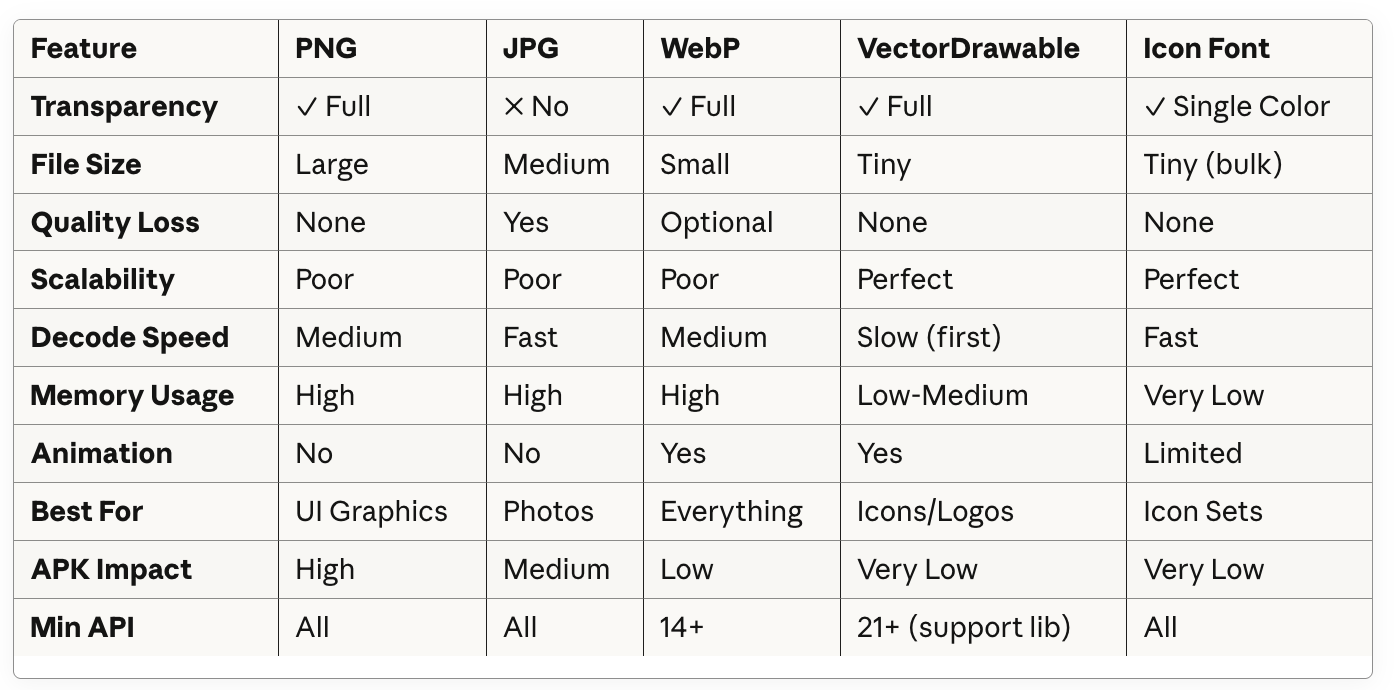
Comprehensive Comparison Table
Rendering Performance Deep Dive
Memory Consumption Comparison
For a 1080x1920 full-screen image:
Calculation: Width × Height × Bytes per pixel

PNG/JPG/WebP (ARGB_8888): 1080 × 1920 × 4 = 8,294,400 bytes (~8MB)
PNG/JPG/WebP (RGB_565):   1080 × 1920 × 2 = 4,147,200 bytes (~4MB)
VectorDrawable (cached):   Depends on complexity, typically <1MB
Icon Font (glyph):         Negligible (font cached once)
Decode Time Benchmark (Average for 500x500 image)
JPG:            5-15ms
PNG:            10-30ms
WebP (lossy):   10-25ms
WebP (lossless): 15-40ms
VectorDrawable: 50-200ms (first render), <1ms (cached)
Icon Font:      <1ms (after font loaded)
Decision Flow Diagrams
Format Selection Decision Tree
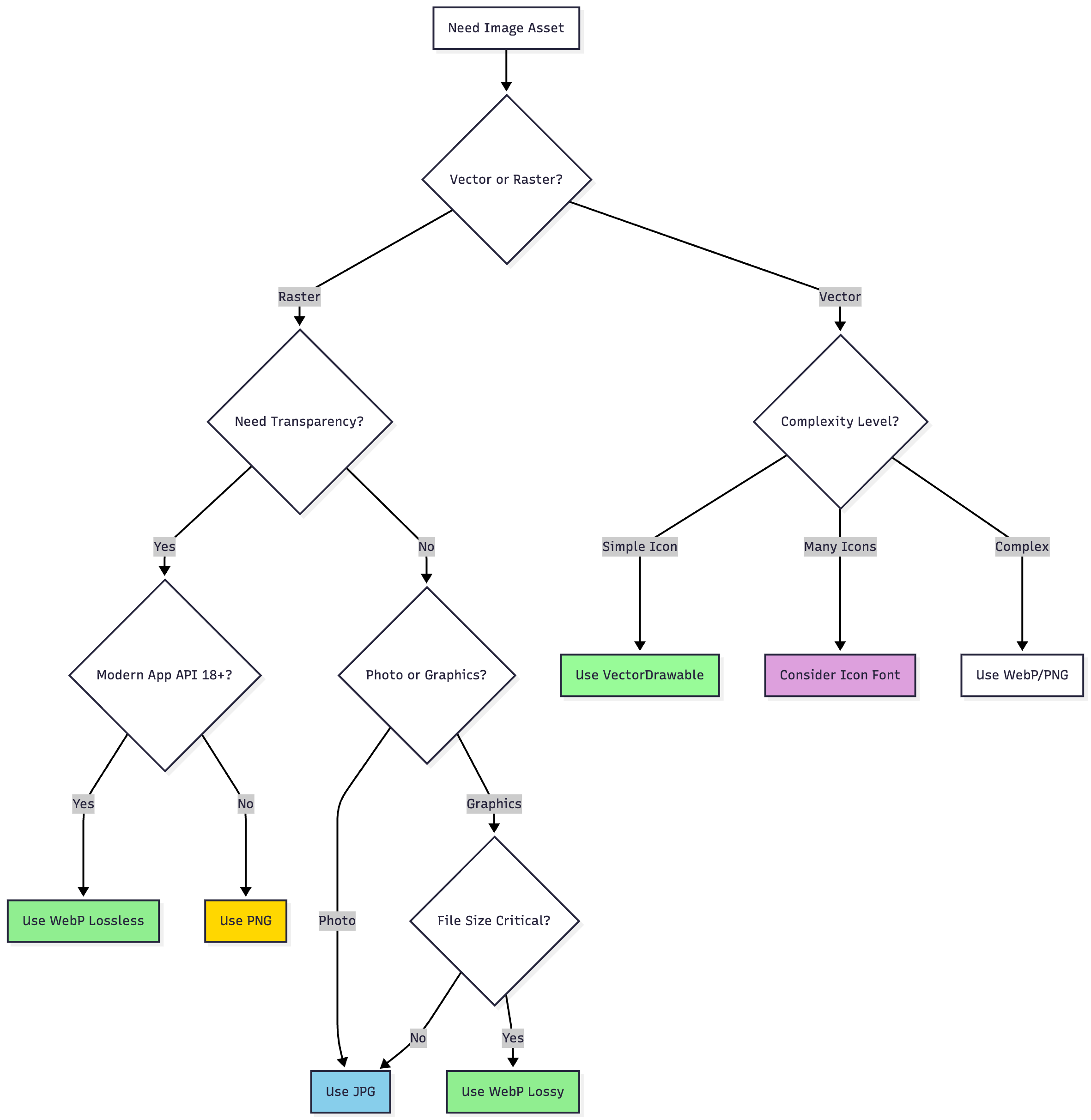
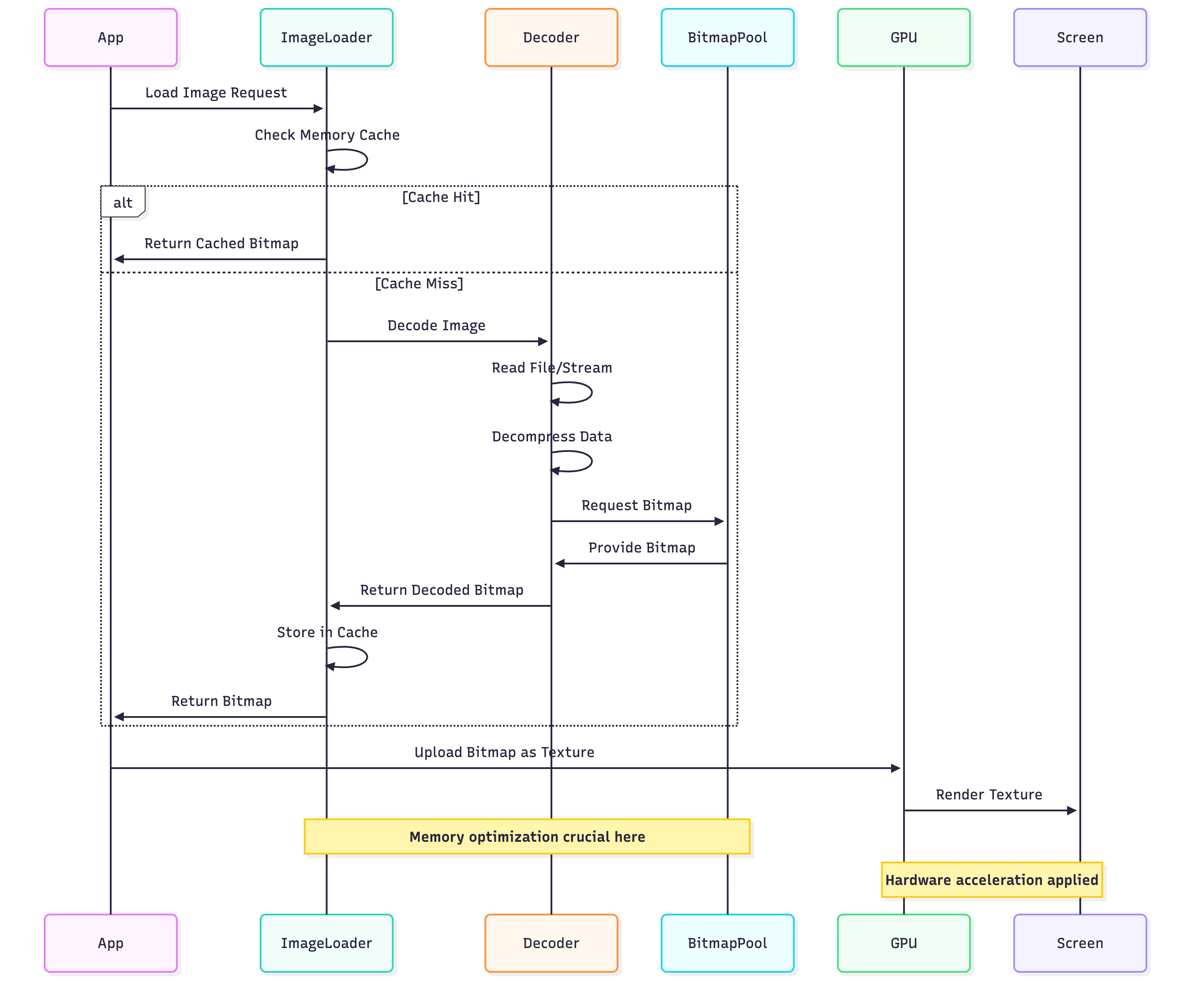
Image Loading and Rendering Pipeline
VectorDrawable Rendering Flow

Best Practices and Optimization Strategies
1. APK Size Optimization
// build.gradle optimization
android {
    defaultConfig {
        // Enable WebP conversion
        androidResources {
            noCompress ‘webp’
        }
    }

    buildTypes {
        release {
            // Automatically convert PNGs to WebP
            crunchPngs true
        }
    }
}
Strategy:
Convert all eligible PNGs to WebP (25-35% size reduction)
Use VectorDrawables for all icons (90%+ size reduction)
Provide only necessary densities (xxxhdpi for vectors)
Use Android App Bundle for density-specific delivery
2. Memory Management
// Proper bitmap configuration
BitmapFactory.Options().apply {
    inJustDecodeBounds = true
    // First decode to get dimensions
    BitmapFactory.decodeResource(resources, R.drawable.large_image, this)

    // Calculate sample size
    inSampleSize = calculateInSampleSize(this, reqWidth, reqHeight)

    // Use RGB_565 for non-transparent images (50% memory reduction)
    inPreferredConfig = if (needsTransparency) {
        Bitmap.Config.ARGB_8888
    } else {
        Bitmap.Config.RGB_565
    }

    inJustDecodeBounds = false
    // Now decode with optimizations
    return BitmapFactory.decodeResource(resources, R.drawable.large_image, this)
}

fun calculateInSampleSize(options: BitmapFactory.Options, reqWidth: Int, reqHeight: Int): Int {
    val (height, width) = options.outHeight to options.outWidth
    var inSampleSize = 1

    if (height > reqHeight || width > reqWidth) {
        val halfHeight = height / 2
        val halfWidth = width / 2

        while (halfHeight / inSampleSize >= reqHeight &&
               halfWidth / inSampleSize >= reqWidth) {
            inSampleSize *= 2
        }
    }
    return inSampleSize
}
3. Image Loading Libraries
Use Modern Libraries:
// Coil (Kotlin-first, modern)
imageView.load(imageUrl) {
    crossfade(true)
    placeholder(R.drawable.placeholder)
    transformations(CircleCropTransformation())
    size(ViewSizeResolver(imageView)) // Automatically size to view
}

// Glide (Battle-tested, feature-rich)
Glide.with(context)
    .load(imageUrl)
    .placeholder(R.drawable.placeholder)
    .diskCacheStrategy(DiskCacheStrategy.AUTOMATIC)
    .into(imageView)
4. Runtime Performance Tips
// Avoid creating bitmaps on main thread
lifecycleScope.launch(Dispatchers.IO) {
    val bitmap = BitmapFactory.decodeStream(inputStream)
    withContext(Dispatchers.Main) {
        imageView.setImageBitmap(bitmap)
    }
}

// Recycle bitmaps when done (if not managed by library)
bitmap.recycle()

// Use hardware bitmaps for display-only images (Android 8.0+)
val hardwareBitmap = bitmap.copy(Bitmap.Config.HARDWARE, false)
5. Format-Specific Recommendations
PNG:
Use tools like
pngcrushoroptipngto optimizeConsider 8-bit PNG for images with limited colors
Always use for UI elements with transparency
JPG:
Use quality 75-85 for optimal size/quality balance
Progressive JPGs for better perceived loading
Always use RGB_565 config when loading
WebP:
Default choice for new projects (API 18+ covers 99%+ devices)
Use lossless for transparency requirements
Use lossy for photos (better than JPG)
VectorDrawable:
Keep path complexity under 1000 nodes
Use for all Material Design icons
Enable
useSupportLibraryfor backward compatibility
Icon Fonts:
Use only for monochrome icon sets
Subset fonts to include only needed glyphs
Consider switching to VectorDrawables for better tooling
Performance Monitoring
Measuring Image Performance
// Measure decode time
val startTime = System.currentTimeMillis()
val bitmap = BitmapFactory.decodeResource(resources, R.drawable.test_image)
val decodeTime = System.currentTimeMillis() - startTime
Log.d(”Performance”, “Decode time: ${decodeTime}ms”)

// Measure memory usage
val runtime = Runtime.getRuntime()
val usedMemory = runtime.totalMemory() - runtime.freeMemory()
Log.d(”Performance”, “Memory used: ${usedMemory / 1024 / 1024}MB”)

// Calculate bitmap memory
val bitmapSize = bitmap.byteCount / 1024 / 1024
Log.d(”Performance”, “Bitmap size: ${bitmapSize}MB”)
Modern Android Recommendations (2024-2025)
Default Format Strategy:
Icons & Simple Graphics: VectorDrawable (SVG-based)
Photos & Complex Images: WebP (lossy)
UI Elements with Transparency: WebP (lossless)
Animations: AnimatedVectorDrawable or WebP animated
Large Icon Sets: Consider Icon Fonts or individual VectorDrawables
Migration Path:

Conclusion
Choosing the right image format significantly impacts your Android app’s performance, memory usage, and user experience. Here’s a quick reference:
Quick Decision Guide:
🎨 UI Icons: VectorDrawable
📸 Photos: WebP (lossy) or JPG
🖼️ Graphics with Transparency: WebP (lossless) or PNG
🎬 Animations: AnimatedVectorDrawable or WebP animated
📦 Large Icon Libraries: Icon Fonts or VectorDrawables
🚀 Performance Critical: Pre-decode and cache bitmaps
💾 Memory Critical: Use RGB_565, downsampling, and appropriate sizing
Modern Android development heavily favors WebP and VectorDrawable formats for most use cases. PNG and JPG remain relevant for specific scenarios, while icon fonts provide a niche solution for large icon sets.
Always profile your app’s image performance using Android Studio’s profiler to make data-driven decisions about format choices and optimization strategies.
For the latest Android image handling best practices, refer to the official Android developer documentation.